
Log into Prism: https://ess.xeniumhr.com & Navigate to Swipeclock in the menu

OR
Log into Swipeclock directly: https://www.swipeclock.com/pg/Ess

From the Swipeclock menu select Time Card, navigate to the correct pay period, enable the deduction column as needed and select +Add to the date you'd like to enter time for.
Within the time sheet add an In and Out time OR total Hours worked. Additionally, add any deducted time for lunches/breaks, select the correct Category (pay code) and any additional allocations that are applicable (departments, divisions, projects, etc.) Once entered select Save
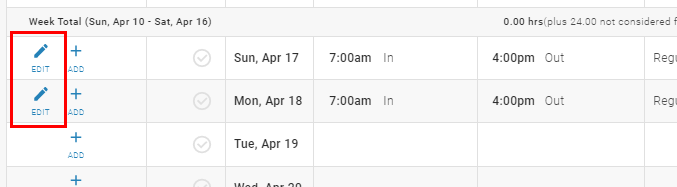
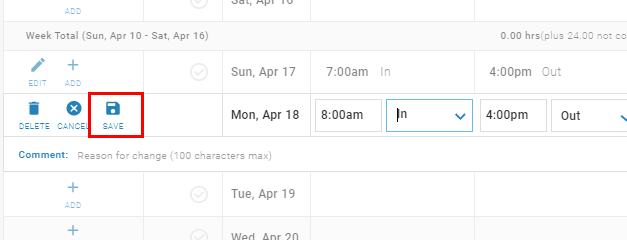
To edit time, select Edit on the entry you wish to edit, make any necessary changes and select Save.
Comments
0 comments
Please sign in to leave a comment.