
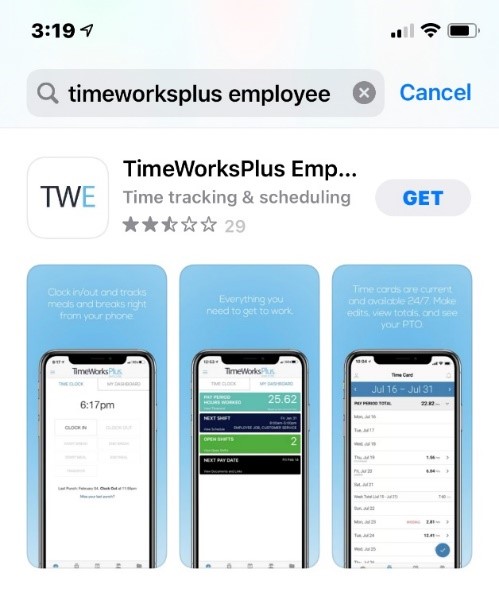
Download TimeWorksPlus Employee mobile app from the app marketplace on your mobile device. Use your Login ID and password to log into the app. These will be provided to you by your manager.
*New employees: Please change your password upon first login. Click on the three dots in the upper right corner of the app and then “Profile” then “Password”. Enter your current password then a new password.
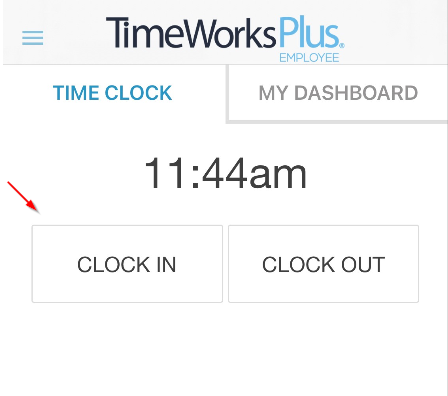
To Clock In or Clock Out, select the 'Clock In' or 'Clock Out' buttons to enter time.
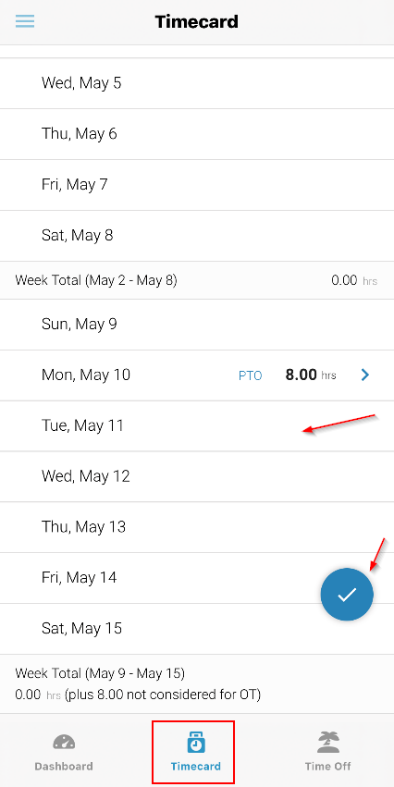
To manually enter time on the timecard, select the Timecard icon at the bottom of the screen. The app will display a list of dates. Select a date to add hours.
(If applicable) The blue checkmark on the screen is to approve ALL hours for the pay period. Please wait to do this until all hours are entered and confirmed.
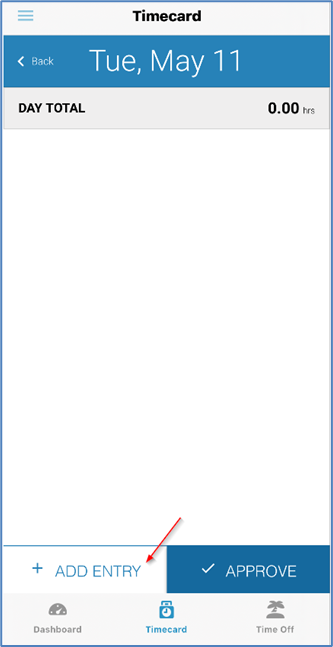
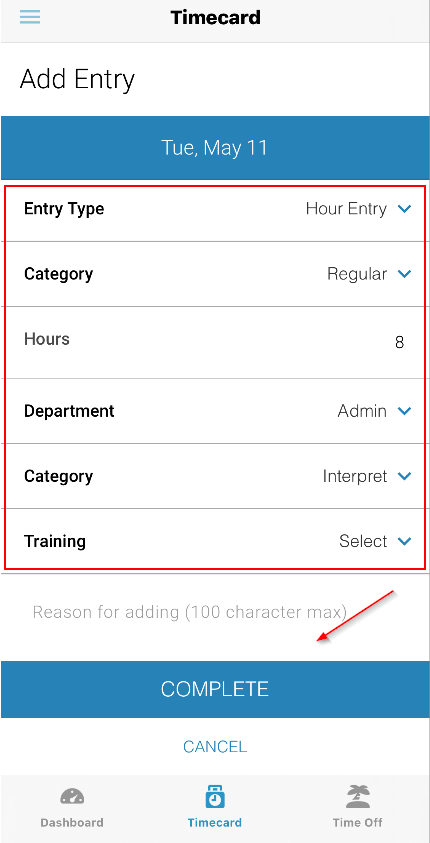
Once a date is selected, select + Add Entry. Enter the type of entry, category, and all other information required and select Complete to add the entry to the timecard.
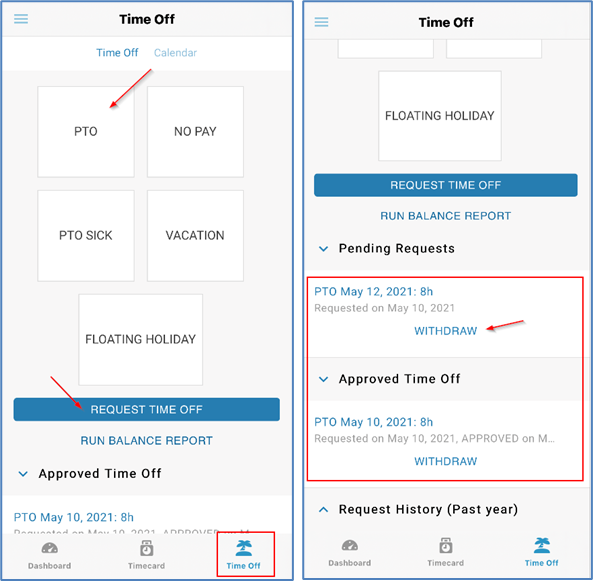
To request time off with the app select the Time Off icon at the bottom of the screen. Then, select the type of time off desired and select Request Time Off. Once requested, the time off request can be reviewed by scrolling down and will have the options to withdraw if needed.
Comments
0 comments
Please sign in to leave a comment.